When visiting an event like Cisco Live! it amazes you how some sessions strike a chord. Smaller sessions like Catalyst 3K with Samer Theodossy @SamerTheodossy and his amazing team, innovating on the 3K platform. Larger sessions like this one..

You can search by BRKARC-2002 – I highly recommend watching the 2015 edition from San Diego, as it far exceeds the 2014 version. The session is available on Cisco Live 365.
https://www.ciscolive.com/online/connect/sessionDetail.ww?SESSION_ID=83413 — Registration required
CCDE and Dual CCIE – Denise “Fish” Fishburne @denisefishburne is the Customer Proof of Concept Team Lead at Cisco. Basically this means that Denise troubleshoots for a living and “makes things work” or works on the “Yeah show me that working” team.
Denise runs a great web site with even more great information – http://www.networkingwithfish.com/ – A bio from the website
Denise “Fish” Fishburne, (CCIE #2639, CCDE 20090014) is a team lead with the Customer Proof of Concept Lab (CPOC) in RTP, NC. In this role, Denise has the unique opportunity of helping customers see their network dreams move from conception to a reality. Denise has been with the CPOC for over 13 years and has been with Cisco 18 years. Fish loves troubleshooting, learning, & passing it on. She has been regular speaker at Networkers/Cisco Live since 2006.
The attempt here is in 2 hours to take 30 years of troubleshooting experience from Fish and download the method into our brains. As someone only 18 years into my career, yes, some of this was a bit of a review, however reminding yourself about method, avoiding tunnel vision and getting out of your own way and the importance of good documentation was excellent.
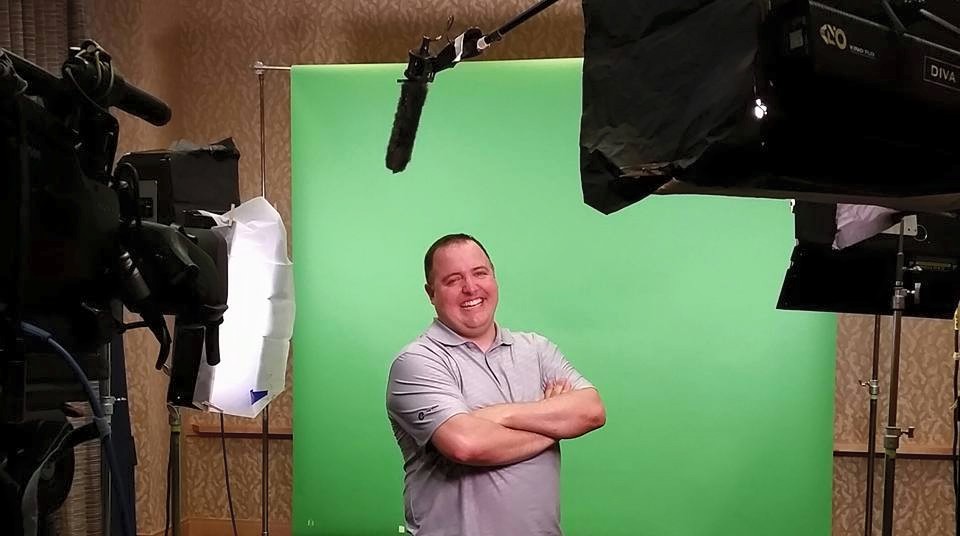
I was accused of being a “sick pup” by Fish when I suggested that intermittent problems were fun (That’s me in the bright green golf shirt in the front row)
This was my favorite session at Live! and it was not even heavily “technical” – however the message was spot on. It does not matter if you have been in tech for 2 years or 20 years, this session is a must. If you are a manager of junior resources – give that resource 2 hours and have them watch this session as the concepts explained by Fish are absolutely spot on. It is technology experts, with 30+ years experience who take the time to share their knowledge and experience with others in the industry that are a special bunch of people; not to mention Fish is an absolutely amazing human being.
On our last day I mentioned to Fish that the work she was doing, teaching sessions like this and sharing knowledge is of such amazing benefit to young professionals, and to never let anyone take that away as it is so vital in our industry for this type of knowledge and experience to be passed on.





 cantechit - Technology and IT BLOG